
ChatGPT Live Dictation lets you review speech before sending
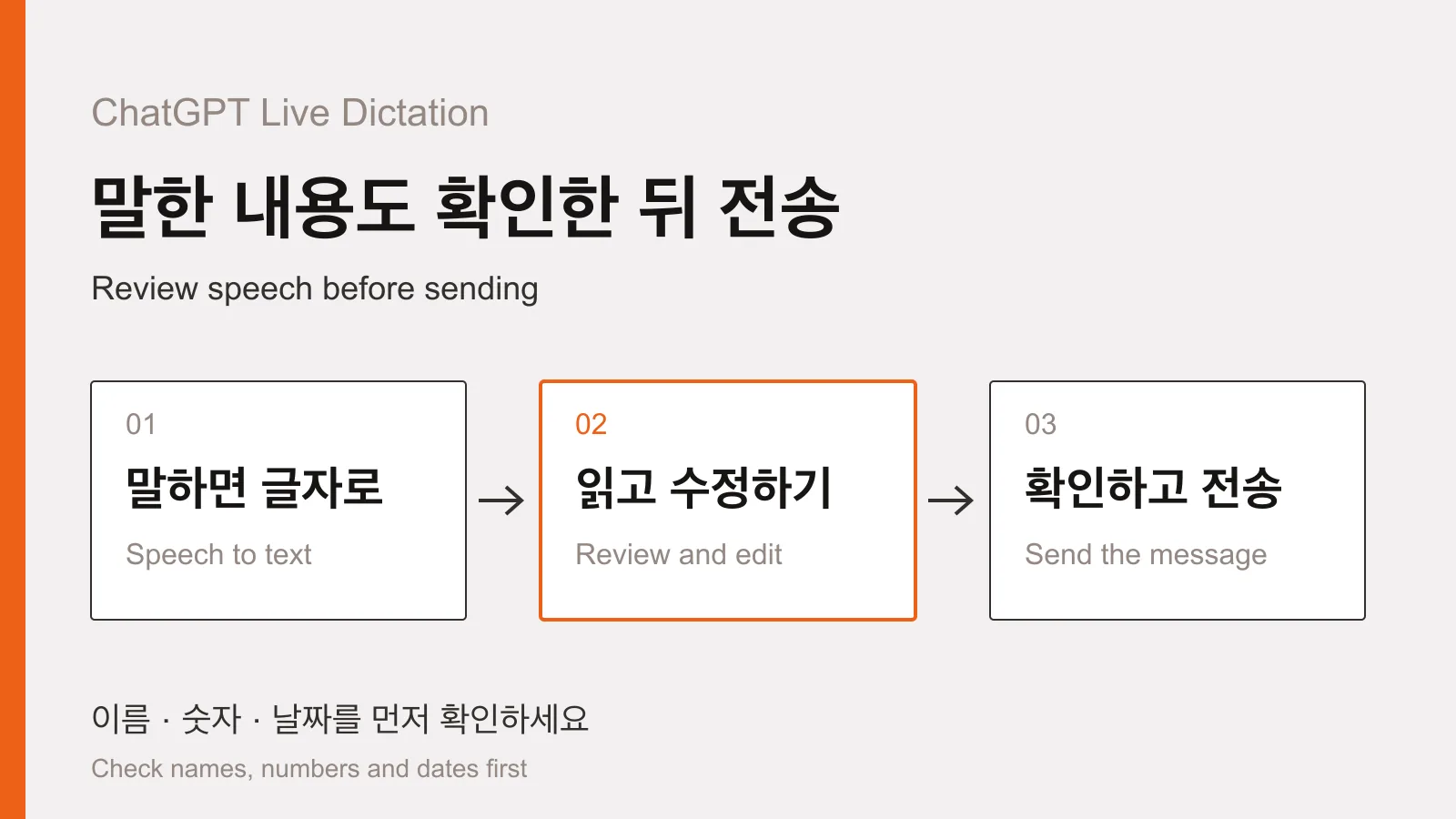
Imagine talking through the schedule and supplies for an event announcement email. Speaking a long request can feel easier than typing it. What you need here is not a continuous spoken conversation with AI, but a way to turn your words into text, correct anything misheard, and then send the request.
Text appears while you speak
OpenAI announced Live Dictation in its ChatGPT release notes on November 18, 2026. Dictation means converting spoken words into text. The key change is that you can see the converted text while speaking rather than waiting until the recording ends.
During recording, tap or click the waveform to show or hide the text. The previous 10-minute recording limit has also been removed. That does not mean every service usage limit has disappeared. The official change concerns the dictation recording limit.
All plans are included in a gradual rollout
The announced rollout is global and covers all ChatGPT plans on iOS, Android, web, and the desktop app. It is not presented as a paid-only change. However, a rollout in progress is different from availability on every account already. Check the features shown in your account, but do not assume a plan restriction simply because the update has not appeared yet.
OpenAI describes dictation as becoming faster and more reliable. This article does not include a hands-on accuracy test on a particular device or with Korean speech. The company's improvement claim is not a guarantee that every name or number will be recognized correctly.
Read and edit before sending
According to the official help article, audio recorded through the microphone icon is sent to the models for transcription. You can edit the returned text before sending it as a user message. Do not assume dictation processes audio only on your device. Turning speech into text and sending the message are separate steps.
Check names and numbers first
- Start dictation using the microphone icon in the message input.
- While speaking, tap the waveform to see the text being transcribed.
- After recording, read names, dates, amounts and negative wording, and correct anything necessary.
- Confirm that the edited text matches your intent, then send the message.
For an announcement email, you could describe the audience, schedule, supplies and desired tone in that order. This is an illustrative workflow, not a reported result from real work. After sending the request, check the generated draft against the original schedule and supplies too.
Audio retention still matters after transcription
Dictation audio is retained while the associated chat remains in your chat history. The official FAQ says that deleting the chat also deletes its audio clip within 30 days. Exceptions apply when retention is needed for security or legal reasons, or when audio previously shared for model training was already disassociated from your account. Conversion to text does not mean the audio file disappears immediately.
Sharing controls are different from chat deletion
For consumer services, OpenAI may train on dictation audio if you choose to share audio to improve its models. To stop sharing, turn off Include your audio recordings in Data Controls, or turn off Improve the model for everyone entirely. This stops audio sharing across dictation and voice chat. Review sharing controls separately from deleting chats to manage retention.
Before speaking customer names or internal information, check whether you are allowed to provide that data. Live Dictation changes how you compose a request. It should not replace your judgment about whether the words were heard correctly, the information is safe to share, and the message is ready to send.
- #AI
- #ChatGPT
- #Live Dictation
- #Voice input
- #Privacy
More posts
ChatGPT Merges Chat and Work Limits, Who Hits Caps Sooner
OpenAI is unifying Chat, Work, and Codex onto one token allowance in December. See what stays off the meter, plan reset windows, and credit pitfalls.
Claude Artifacts as Desktop Apps Still Need Online Sign-In
Claude's Nov 24 Install as app beta turns artifacts into Mac and Windows apps. See online sign-in rules, three permission tiers, update prompts, and limits.
GPT-6.2 Reaches ChatGPT Chat, With Key Plan and Picker Limits
GPT-6.2 is rolling out to paid ChatGPT Chat tabs. Learn who gets access, why selecting it hides 6 Pro, and the trade-offs noted in OpenAI's system card.