
Claude Artifacts as Desktop Apps Still Need Online Sign-In
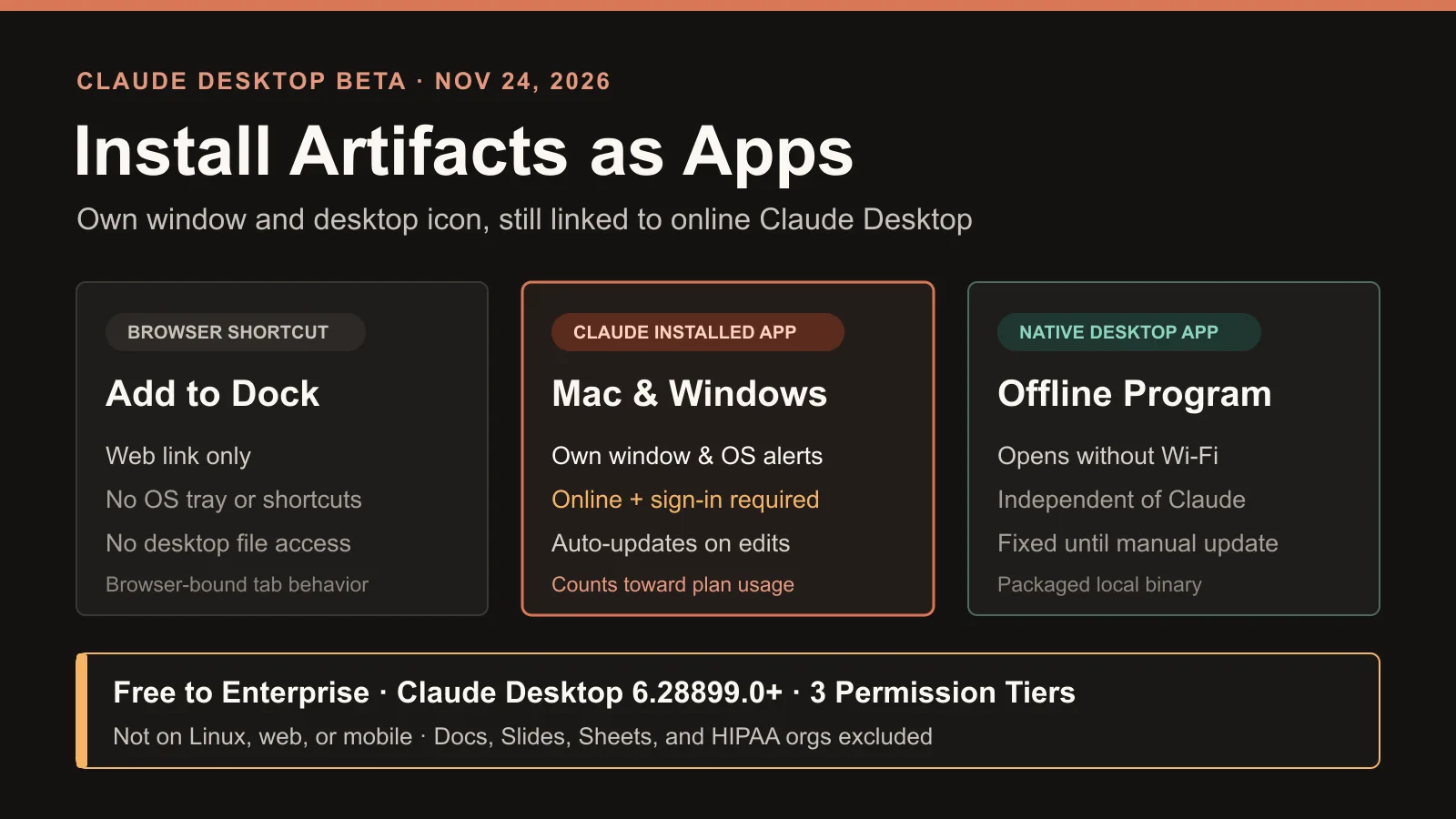
If you have asked Claude to build a quick timer or checklist, digging back through old chats every time you need it gets tedious. An artifact is the interactive webpage or mini tool Claude creates beside your conversation. On November 24, 2026, Anthropic began rolling out Install as app in beta so you can install an artifact as a Mac or Windows desktop app. It requires Claude for Mac or Claude for Windows version 6.28899.0 or later and is rolling out across Free, Pro, Max, Ultra, Team, and Enterprise plans.
How installed artifact apps differ from offline programs
An installed artifact opens in its own window with its own desktop icon. You do not need to package an installer, sign code, set up an API key, or create a separate login. The app keeps using Claude and your connected external apps, known as connectors, and updates automatically whenever you or another editor modifies the original artifact. Browser shortcuts such as Add to Dock, Add browser shortcut, or Add to Home Screen only create a link and do not provide these desktop capabilities.
Even though it sits beside your other programs, an installed artifact is not an offline standalone app. Because it stays tied to the original artifact, you must be online and signed in to Claude Desktop just to open it. Independent coverage from AppleInsider highlighted this boundary by calling the output semi-independent Mac apps that cannot open without an internet connection and active login. Building the app and every request the app sends to Claude also count toward your plan usage limits.
Anthropic's help guide lists everyday examples such as a menu-bar Pomodoro timer, an hourly stretch reminder, and a Windows tool that renames photos in a folder by date. Its announcement also points to internal employee examples including Linnet (a layered image editor), Phosphor (a file manager), Sift (a folder organizer), Tern (a terminal helper), and Vitals (a menu bar and tray performance viewer). Those are company examples rather than guaranteed replacements for specialized desktop software, so check your usage allowance and connectivity needs first.
Three permission levels to check before clicking Allow
Before an installed app can do anything beyond standard browser behavior on your computer, Claude asks you to choose Allow or Don't allow across three tiers.
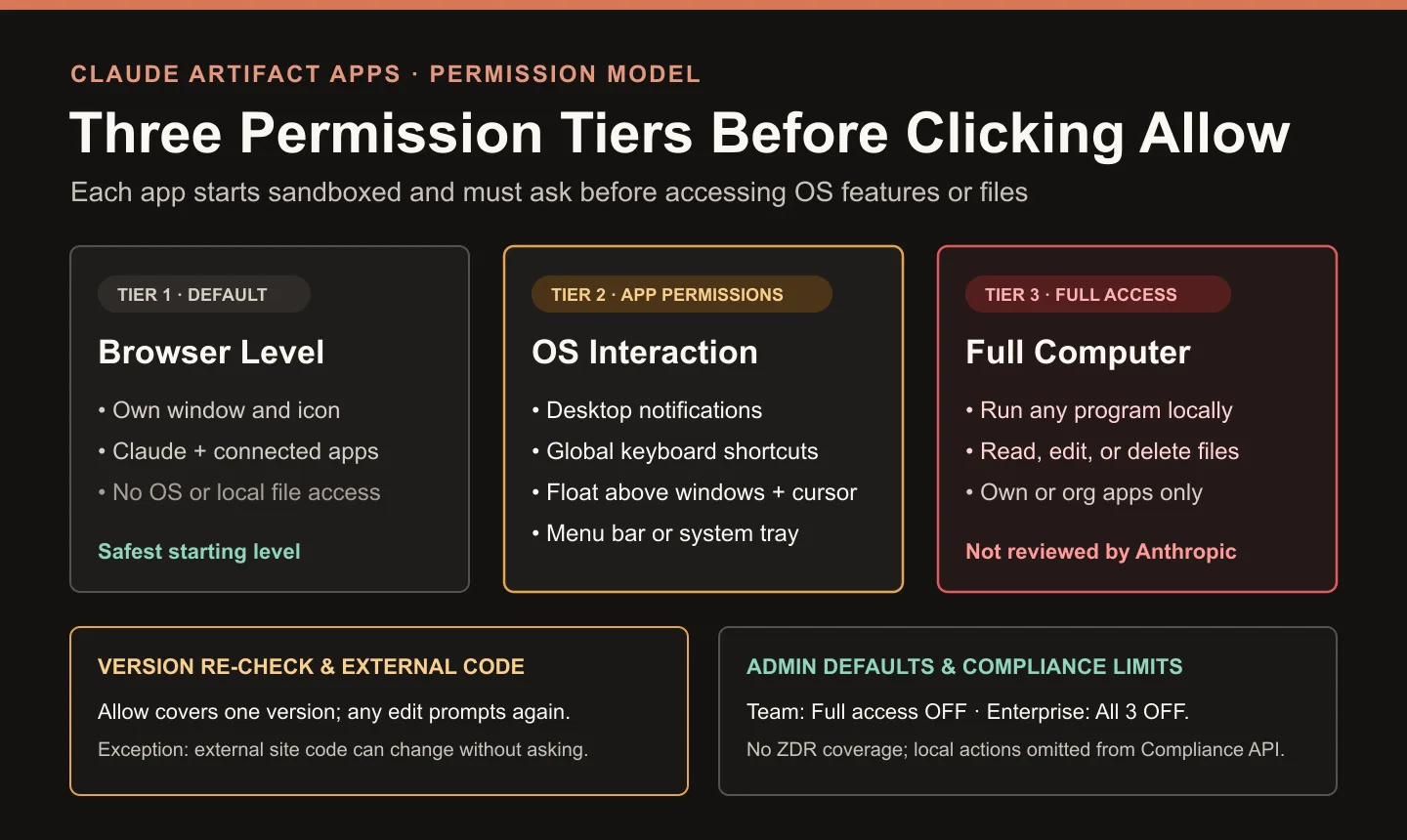
- Default Opens in a dedicated window and icon, but stays limited to what the artifact could do inside a browser tab. This is enough for simple calculators, notes, or connector dashboards.
- App permissions Prompts individually for desktop notifications, global keyboard shortcuts while using other apps, floating above other windows (which also reads mouse cursor position), and a macOS menu bar item or Windows system tray icon.
- Full access to this computer Allows the app to run programs and read, modify, or delete files without asking each time, and also covers the app permissions above unless you or your organization disabled them.
Updates re-trigger prompts with one external-code exception
Clicking Allow applies only to the current version of the app. After any change, including your own edits, Claude prompts again. Choosing Don't allow persists until you change it. However, if an app loads code from another website, that external code can change without triggering a new permission prompt, so tools relying on untrusted external sites require extra caution.
Crucially, Anthropic does not review apps before you install them. Claude displays a warning if an app comes from outside your organization or its author cannot be verified, and it generally blocks full computer access requests in those cases. On Free, Pro, Max, and Ultra plans, outside your organization means anyone other than you; on Team and Enterprise plans, full access is limited to apps made within your organization.
Background processes, revoking access, and uninstalling
An app with a menu bar item or system tray icon keeps running after you close its window. To stop it completely, quit from the Dock or press Cmd+Q on macOS, or choose Exit from the tray icon menu on Windows. You can adjust or revoke permissions from the app menu or through File then Apps in Claude Desktop. Turning off full access may reload or close the app, so save your work first; it does not undo changes already made, and any program that detached itself from the app can keep running.
If an owner stops sharing an app and you lose access, programs the app launched also stop, though this can take up to about 20 minutes or longer while offline, signed out, or switched to another organization. To uninstall, open File then Apps in Claude Desktop and choose Uninstall. On macOS the app moves to the Trash, on Windows its shortcuts are removed, and any icons pinned to the Dock, taskbar, or Start menu must be removed separately. Uninstalling revokes granted permissions without deleting the underlying artifact.
Current beta limits and team or company controls
At beta launch, Install as app is limited to Mac and Windows desktop and is not available on Linux, web, or mobile. Individual public posts and replies on Bluesky pointed out that iOS restrictions prevent a similar one-click personal app workflow on iPhone and flagged new desktop security attack surfaces to watch. Template artifacts such as Docs, Slides, and Sheets, legacy artifacts, and live Claude Cowork artifacts cannot be installed. On macOS, Claude computer use can see an installed app on screen but cannot click or type inside it.
Workplace accounts follow stricter defaults. On Team plans, Install as app and App permissions start turned on while Full access to the computer starts off. On Enterprise plans, all three start off until an owner enables them, and changes take up to about an hour while applying only when that organization is selected. IT teams can also use centralized device management (MDM) policy keys to disable these features across every account on a computer, requiring Claude Desktop 6.6395.1 or later on macOS and 6.6395.0 or later on Windows. HIPAA-ready organizations and hybrid deployments cannot turn the feature on, Claude for Teachers and K-12 organizations cannot enable full access, zero data retention (ZDR) does not cover installed apps, and the Compliance API logs opening and access checks as artifact views without logging installs, permission answers, or local computer actions.
Practical guardrails for trying your first installed app
If you want a dedicated window for a small recurring helper such as a timer, checklist, or meeting prep board without writing code, this beta is straightforward to try. Start with a tool you built yourself under Default permissions or minimal App permissions such as notifications, and keep Full computer access off unless a trusted local task genuinely needs it. Because installed apps depend on internet connectivity, active Claude Desktop sign-in, and plan usage limits, keeping critical offline workflows and sensitive files in established desktop software remains the safer baseline.
- #AI
- #Claude
- #Artifacts
- #Desktop Apps
- #Permissions
More posts
ChatGPT Merges Chat and Work Limits, Who Hits Caps Sooner
OpenAI is unifying Chat, Work, and Codex onto one token allowance in December. See what stays off the meter, plan reset windows, and credit pitfalls.
GPT-6.2 Reaches ChatGPT Chat, With Key Plan and Picker Limits
GPT-6.2 is rolling out to paid ChatGPT Chat tabs. Learn who gets access, why selecting it hides 6 Pro, and the trade-offs noted in OpenAI's system card.
Claude computer use beta goes beyond read-only folders
Understand Claude's Team and Enterprise beta: organization controls, individual app approval, mobile connections, and the limits of read-only folders.